> ## Documentation Index
> Fetch the complete documentation index at: https://docs.zafapay.com/llms.txt
> Use this file to discover all available pages before exploring further.
# Products & Prices
> Create and manage products and prices from the merchant dashboard
## Overview
Products represent what you sell. Each product can have multiple **prices** in different currencies or billing intervals. Products and prices are used when creating [Payment Links](/en/guide/payment-links).
## Creating a Product
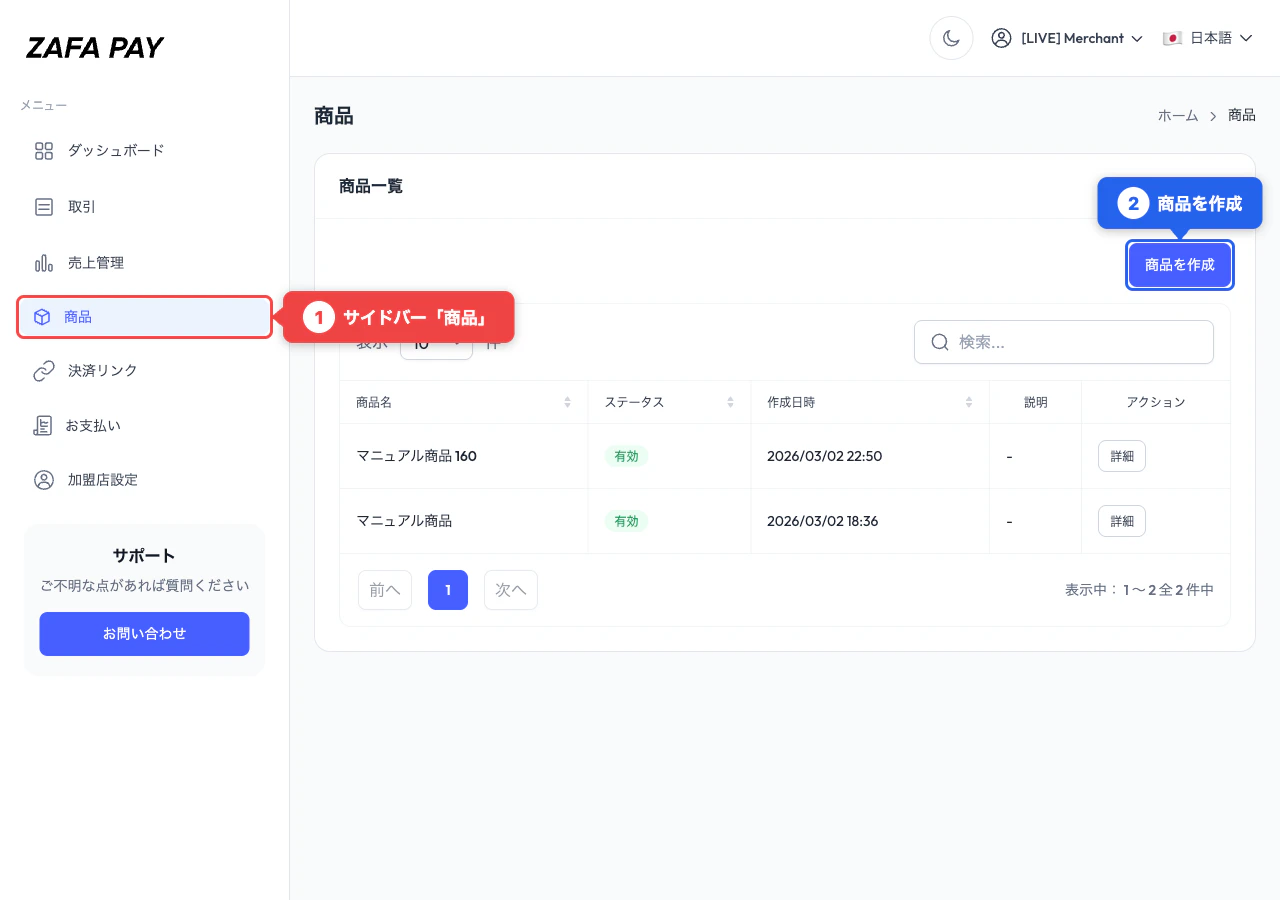
Go to **Products** in the sidebar menu and click **Create Product**.
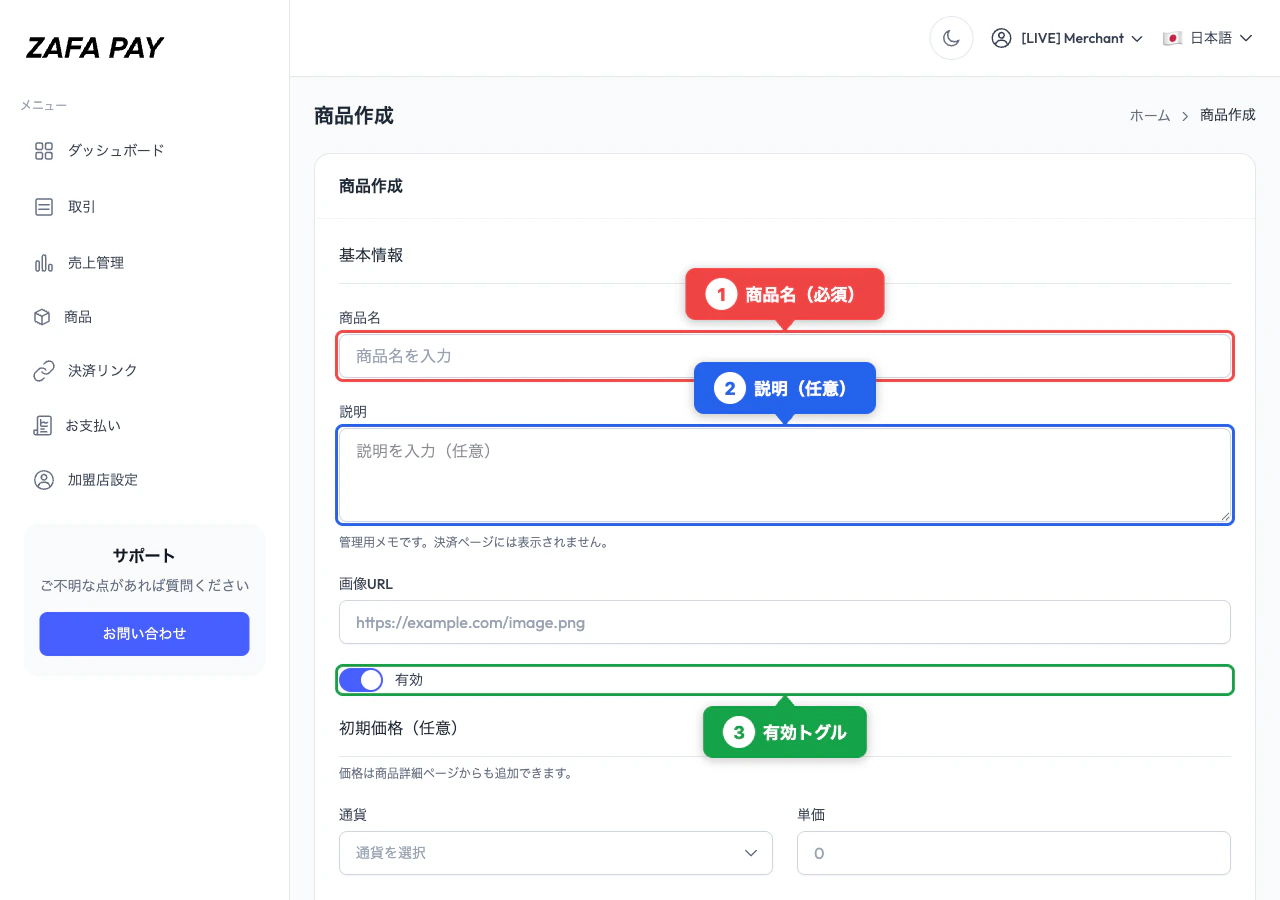
 * **Product Name** (required)
* **Description** (optional) — For internal reference only, not displayed on the checkout page
* **Active** toggle (enabled by default)
* **Product Name** (required)
* **Description** (optional) — For internal reference only, not displayed on the checkout page
* **Active** toggle (enabled by default)
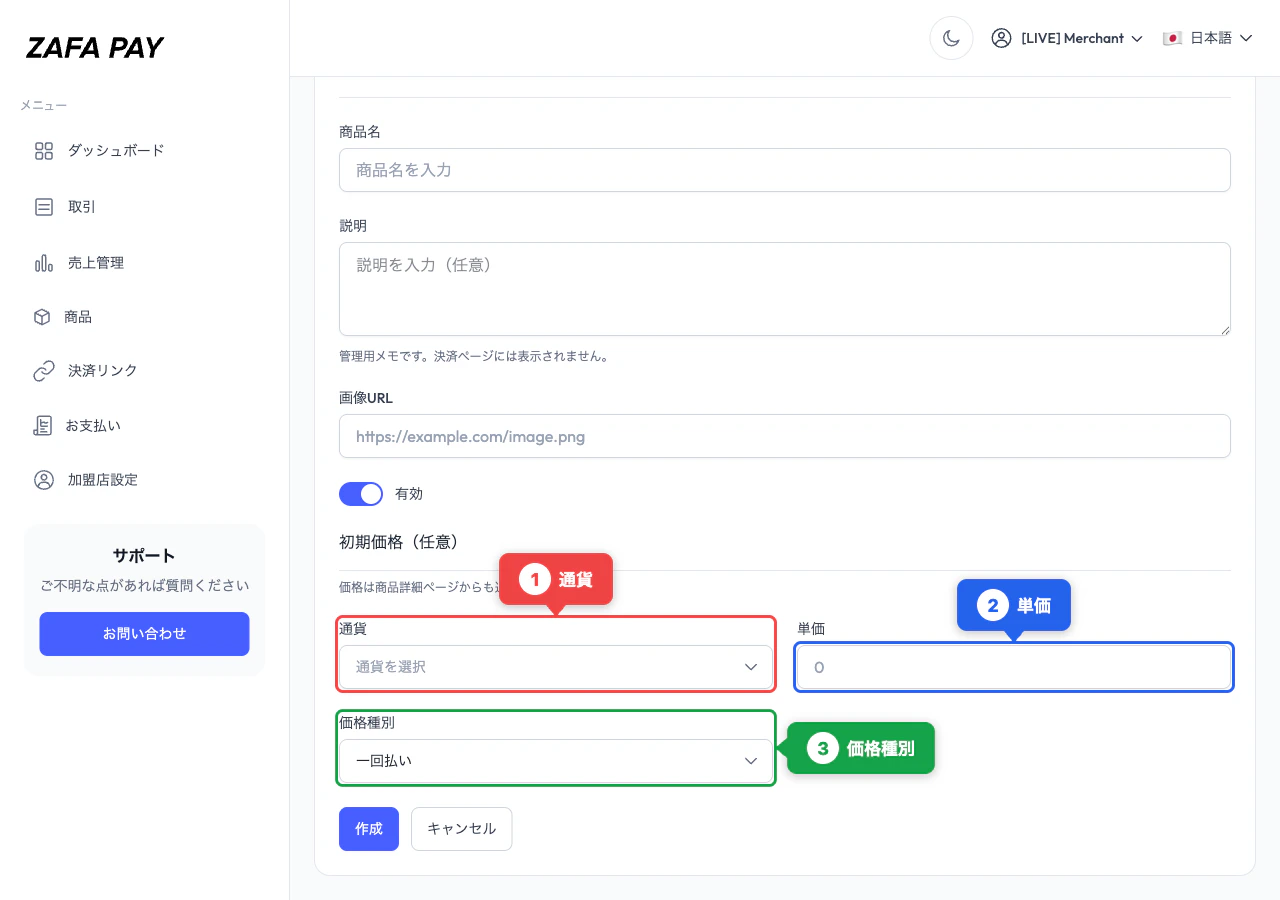
 You can optionally set an initial price during product creation:
* **Currency** — USD, JPY, EUR, SGD, PHP, GBP, AUD, CAD
* **Unit Amount** — Price amount (e.g., 1000 for JPY, 19.99 for USD)
* **Price Type** — One-time or Recurring
You can skip this step and add prices later from the product detail page.
You can optionally set an initial price during product creation:
* **Currency** — USD, JPY, EUR, SGD, PHP, GBP, AUD, CAD
* **Unit Amount** — Price amount (e.g., 1000 for JPY, 19.99 for USD)
* **Price Type** — One-time or Recurring
You can skip this step and add prices later from the product detail page.
 Click **Create** to save the product. You'll be redirected to the product detail page.
## Product Image
You can upload a product image from the product edit page. Supported formats: PNG, JPG, WebP.
The image is displayed on the checkout page when the product is used in a payment link.
## Prices
Each product can have multiple prices. This allows you to offer the same product in different currencies or with different billing intervals.
### Creating a Price
| Field | Required | Description |
| ---------------- | -------------- | -------------------------------------------------------------- |
| Unit Amount | Yes | Price amount (e.g., 1000 for JPY, 19.99 for USD) |
| Currency | Yes | USD, JPY, EUR, SGD, PHP, GBP, AUD, CAD |
| Price Type | Yes | One-time or Recurring |
| Nickname | No | Label to distinguish multiple prices |
| Billing Interval | Recurring only | Day, Week, Month, or Year |
| Interval Count | Recurring only | Number of intervals between charges (e.g., 2 = every 2 months) |
### Price Immutability
Price amount, currency, and type cannot be changed after creation. To change these, deactivate the existing price and create a new one.
After creation, only the following can be updated:
* **Active / Inactive** status
* **Nickname**
## Managing Products
### Editing
From the product detail page, click **Edit** to update:
* Product name
* Description
* Image (upload or remove)
* Active status
### Activating / Deactivating Prices
Toggle individual prices on or off from the product detail page. Inactive prices will not appear when creating payment links.
Click **Create** to save the product. You'll be redirected to the product detail page.
## Product Image
You can upload a product image from the product edit page. Supported formats: PNG, JPG, WebP.
The image is displayed on the checkout page when the product is used in a payment link.
## Prices
Each product can have multiple prices. This allows you to offer the same product in different currencies or with different billing intervals.
### Creating a Price
| Field | Required | Description |
| ---------------- | -------------- | -------------------------------------------------------------- |
| Unit Amount | Yes | Price amount (e.g., 1000 for JPY, 19.99 for USD) |
| Currency | Yes | USD, JPY, EUR, SGD, PHP, GBP, AUD, CAD |
| Price Type | Yes | One-time or Recurring |
| Nickname | No | Label to distinguish multiple prices |
| Billing Interval | Recurring only | Day, Week, Month, or Year |
| Interval Count | Recurring only | Number of intervals between charges (e.g., 2 = every 2 months) |
### Price Immutability
Price amount, currency, and type cannot be changed after creation. To change these, deactivate the existing price and create a new one.
After creation, only the following can be updated:
* **Active / Inactive** status
* **Nickname**
## Managing Products
### Editing
From the product detail page, click **Edit** to update:
* Product name
* Description
* Image (upload or remove)
* Active status
### Activating / Deactivating Prices
Toggle individual prices on or off from the product detail page. Inactive prices will not appear when creating payment links.