

Overview
Products represent what you sell. Each product can have multiple prices in different currencies or billing intervals. Products and prices are used when creating Payment Links.Creating a Product
1
Navigate to Products
Go to Products in the sidebar menu and click Create Product.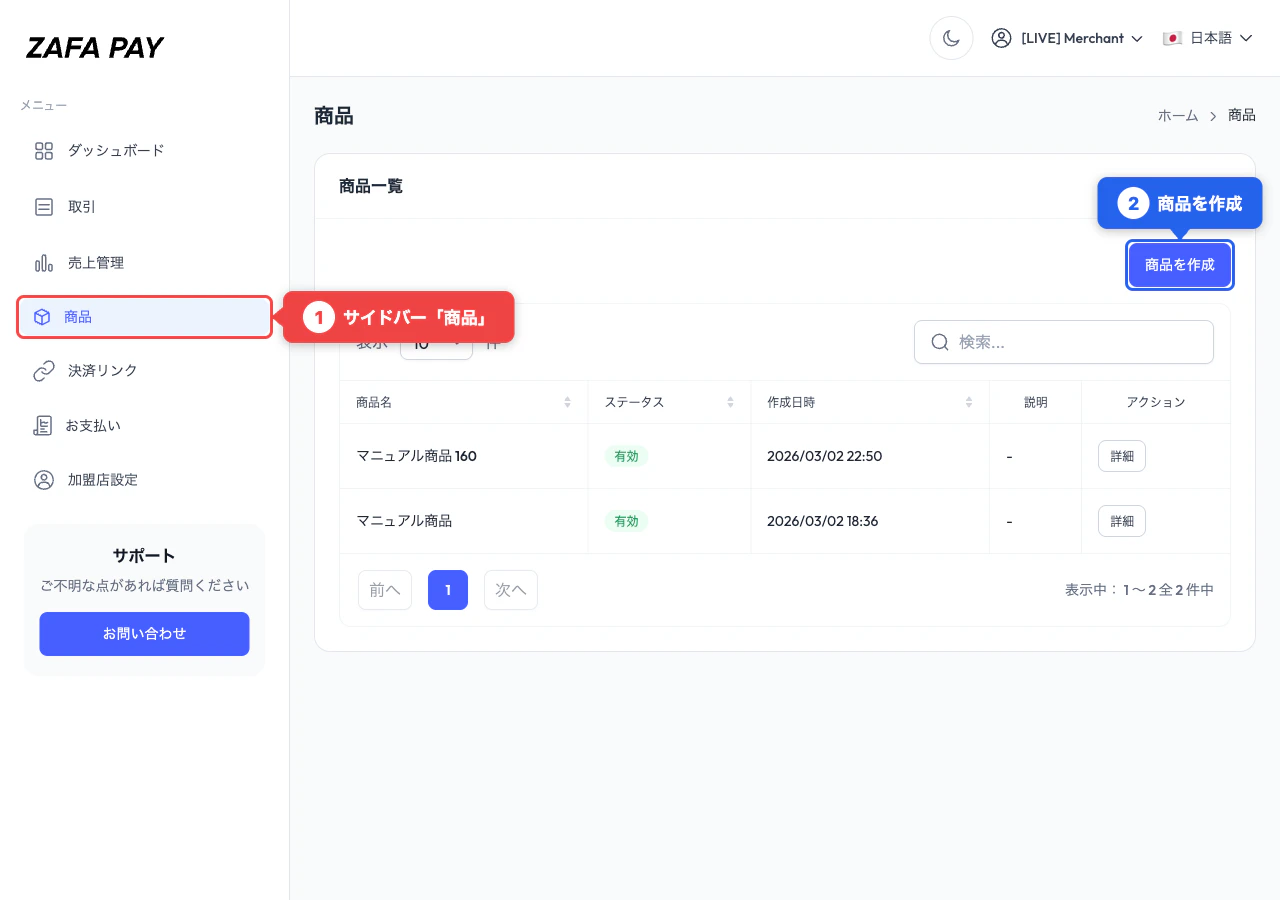
2
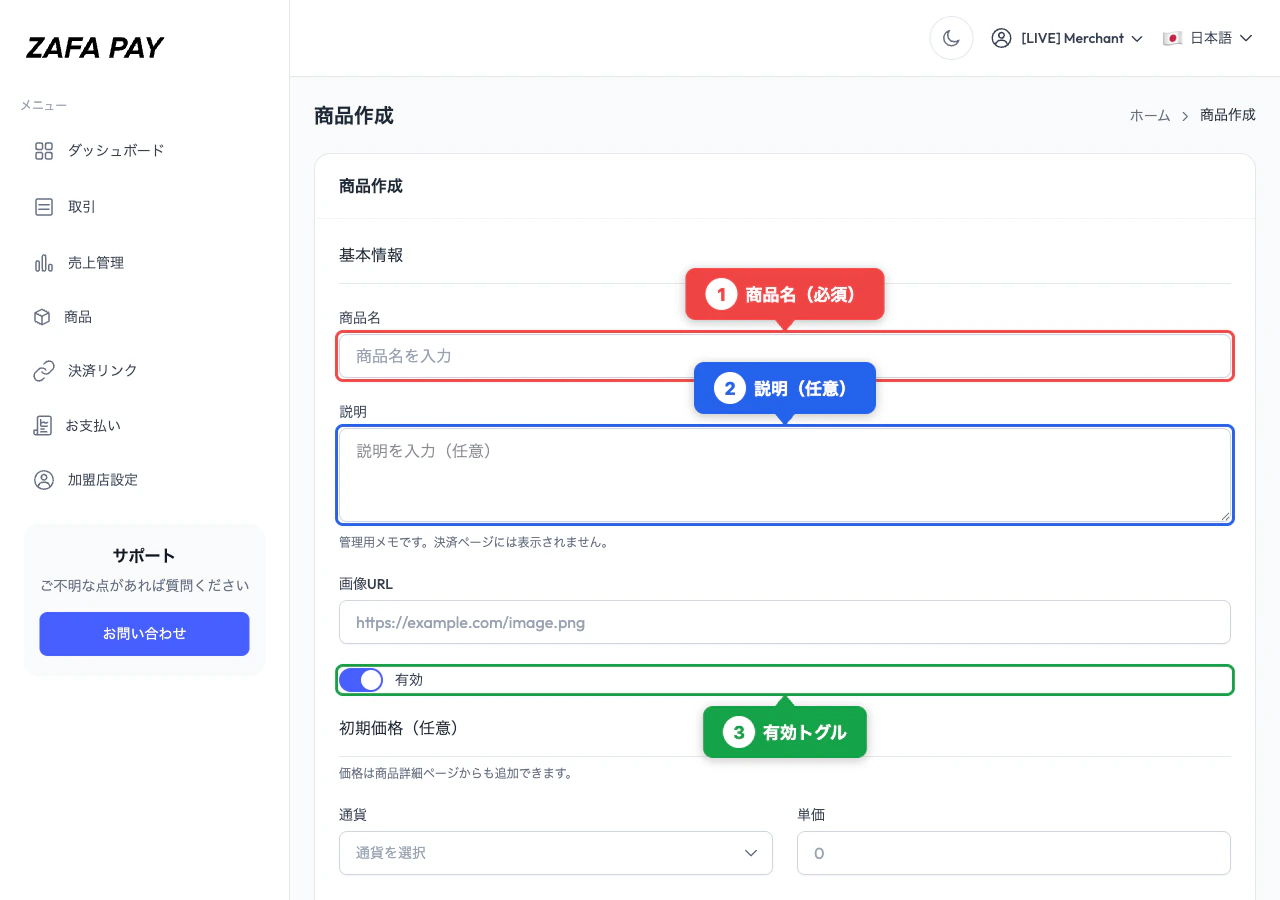
Fill Product Information
- Product Name (required)
- Description (optional) — For internal reference only, not displayed on the checkout page
-
Active toggle (enabled by default)
3
Set Initial Price (Optional)
You can optionally set an initial price during product creation: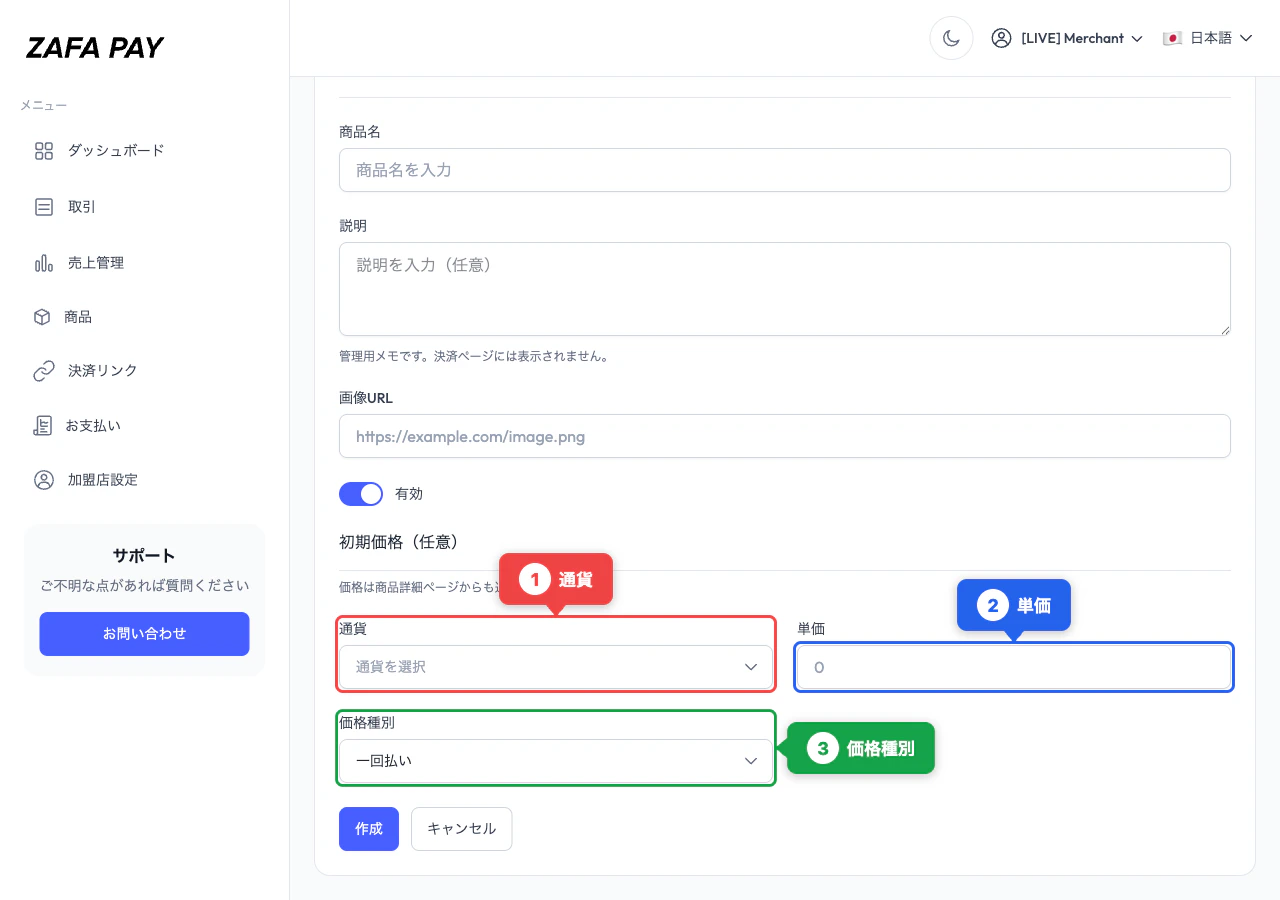
- Currency — USD, JPY, EUR, SGD, PHP, GBP, AUD, CAD
- Unit Amount — Price amount (e.g., 1000 for JPY, 19.99 for USD)
- Price Type — One-time or Recurring
4
Create
Click Create to save the product. You’ll be redirected to the product detail page.
Product Image
You can upload a product image from the product edit page. Supported formats: PNG, JPG, WebP. The image is displayed on the checkout page when the product is used in a payment link.Prices
Each product can have multiple prices. This allows you to offer the same product in different currencies or with different billing intervals.Creating a Price
Price Immutability
After creation, only the following can be updated:- Active / Inactive status
- Nickname
Managing Products
Editing
From the product detail page, click Edit to update:- Product name
- Description
- Image (upload or remove)
- Active status